
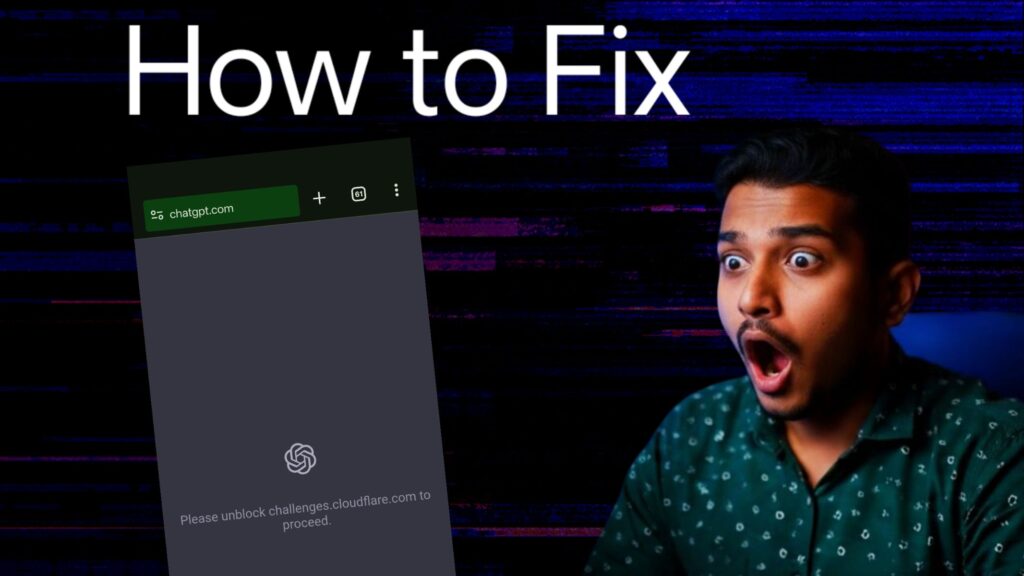
If you’re trying to open ChatGPT on your laptop or PC and you’re getting a message from Cloudflare like “Please unblock challenges,” you’ve come to the right place! In this post, I’ll share my entire experience – what I tried, where I encountered problems, what tricks I used, and ultimately how I solved the problem. Furthermore, I’ll provide a step-by-step, practical approach so you can solve this problem yourself from the comfort of your home.
“If it’s not happening to me, it won’t happen to you either. You have to try it yourself. Okay?”
Table of Contents
Table of Contents
What is Cloudflare Challenge Error in ChatGPT?
If you want to open the official website of ChatGPT, OpenAI in your system and you get this message –
“Please unblock challenges, cloudflare.com to proceed”
This means that your browser or network failed to pass Cloudflare’s security checks. Simply put: your request is being blocked, either at Cloudflare’s level or for some reason within your browser/internet setup.
This issue is often encountered by users in India (or similar networks), especially when Cloudflare detects some unusual traffic.
Step 1: The right way to search and open websites
The first thing to try is to search the ChatGPT website properly.
A common mistake:
clicking on a link already found in your browser or in a message instead of searching. Pre-generated links can sometimes be expired or blocked!
What is the plan?
- Open a new tab in your browser.
- Type it in there yourself – ChatGPTorOpenAI ChatGPT
- The top website that comes up from a Google search is usually OpenAI’s official website (https://chat.openai.com)
- Click on this link yourself.
- Avoid already generated (existing/opened) links.
Step 2: Refresh and Repeat Process – Patience Is Key
When the website opens but the same Cloudflare issue appears, don’t panic! Just be patient.
What to do?
- Refresh the page 3-4 times .
- Check every time whether any new message or captcha has come or not.
- If necessary, refresh up to 15-20 times.
In my case, once the website opened after doing it 15-20 times!
Important Note
It’s also important to check whether the page loads properly after each refresh. Sometimes, the security check passes after refreshing.
Step 3: Try changing browsers
If you are facing the same problem again and again with your default browser, then the next step is to change the browser!
Which browsers did I try?
1. BV (Brave) browser
It is considered very heavy and secure.
- Open BV Browser.
- Search by typing ChatGPT yourself.
- Click on the first website that appears.
Still the same error kept coming in my case.
2. Microsoft Edge browser
Another option is the Microsoft Edge browser.
- Open
- Type: ChatGPT
- Click on the first website
- Observe: Is the Cloudflare challenge still happening?
3. Opera browser
Same process in Opera:
- Open Opera
- Search ChatGPT
- Open the first website
Still in my case Cloudflare challenge came up!
Step 4: How to use VPN?
If nothing improves after trying all the browsers, the next level is to try a VPN.
What is VPN?
A Virtual Private Network (VPN) routes your internet traffic through a server in another country, sometimes bypassing region-specific errors.
How to use VPN inside Opera browser?
- Open Opera
- The VPN option will appear on the side or top.
- Turn on VPN
- Choose a server: European or the one that responds the fastest.
- Click on Connect
- Now refresh the ChatGPT website and see if the error is gone?
In my case –
VPN got connected,
website also started loading
but… in the end the same error appeared again.
“It’s connected. Let’s refresh it now. Loading has started. You can see it. It’s still loading. Okay? So I think the loading is complete. But I’m still getting the same error.”
Possible Reasons For The Error
Let us now understand why this Cloudflare challenge error is occurring?
Some reasons could be:
- Network Blocked by ISP: Your Internet Service Provider may have blocked some requests.
- Unusual Traffic: Frequent refreshes can cause Cloudflare to believe automated/bot traffic is coming.
- Cookies or Cache Issue: The website is showing challenges due to old temp data.
- Browser Extensions: Adblockers or privacy extensions may be blocking Cloudflare’s scripts.
- VPN or Proxy Issues: Sometimes Cloudflare is unable to verify identity even when using a VPN.
A few more tricks and tips
If the steps above don’t work, try a few other things:
1. Clean Browser Cookies & Cache
- Steps:
- Go to browser settings
- Click on “Clear browsing data”
- Cookies, Cached images and files select करें
- Clear Data
- Try ChatGPT login again
2. Turn Off Browser Extensions
- Try disabling Adblocker, Privacy Guard, VPN extensions, etc.
- Then refresh the website.
3. Try with another internet connection
- If possible, connect to another WiFi or mobile hotspot.
4. Try Incognito Mode
- Open the browser’s Incognito (Private) window
- Repeat all the steps in the same
5. Try it from a mobile browser
- Sometimes mobile networks work differently.
What to do if it still doesn’t work?
- Wait for Some Time: Cloudflare challenge may be a temporary issue, wait for some time.
- Contact Official Support: OpenAI or raise your issue on the official support forum
New updates will come from here onwards
“If you find any session, it will definitely be on this channel. So subscribe and write it down. Keep it. Okay?”
FAQ
Does ChatGPT work in India?
Yes, there is official support but sometimes network or Cloudflare error may occur.
What does Cloudflare challenge error mean?
Cloudflare is checking your request to see if you’re a human or an automated bot.
Does VPN work?
Sometimes, but not always. Try different servers.
How often is it safe to refresh?
3-4 times is fine. Doing it more often can cause the system to block.
Bonus: Understand the Cloudflare Challenge Error
Cloudflare is a security company that protects websites from DDoS and other malicious traffic.
If it detects unusual activity, it places a “Challenge” on the website—
- Captcha (I’m not a robot)
- Direct block “Please unblock challenges”
- wait or retry in some cases
What should be done?
- Calm and Patience.
- Clearing your device’s settings, IP, and cache
- Sometimes the website fixes itself.
Conclusion: Don’t give up hope!
The bottom line of this entire experience is this:
if you’re having trouble opening ChatGPT on your laptop/PC, don’t panic!
Try different browsers, use a VPN, and clear your cache.
And if that still doesn’t work, try again after a while. And yes, be sure to subscribe to the channel for the latest updates!